

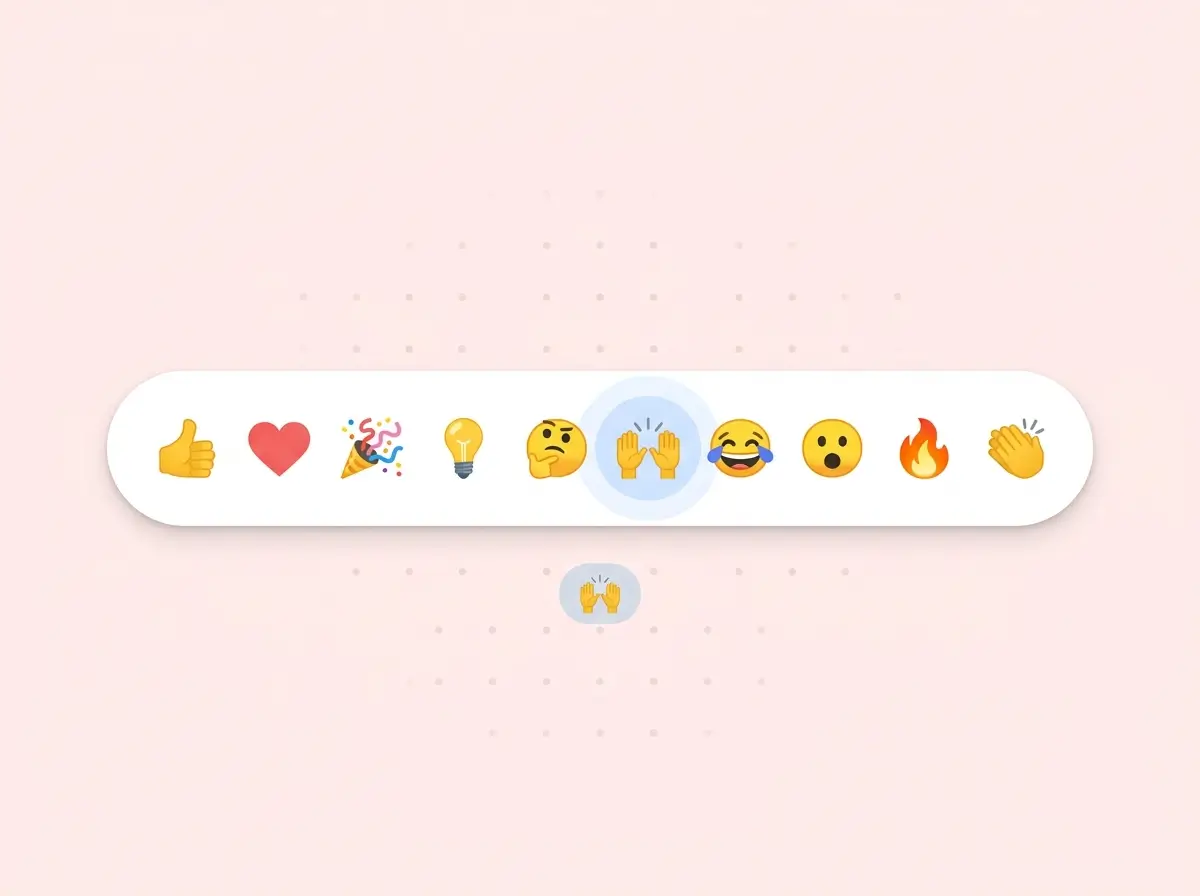
A thumbs-up is fine when you only need a yes. But people feel more than yes. They love, celebrate, laugh, clap, or rate with stars. WordPress emoji reactions finally let them show it.
WP ULike Pro adds Emoji Reactions and Star Ratings as flexible reaction types next to classic likes. Pick the style that fits each part of your site. Ask for a quick yes, a feeling, or a score. Same Statistics dashboard either way.
This guide covers what makes WordPress emoji reactions in WP ULike different, how Star Ratings work, and how to set everything up from the Settings panel, Customizer, and Display Automation. Emoji Reactions and Star Ratings are Pro-only. Free keeps classic like buttons. Pro unlocks the reaction types below.
Why WordPress emoji reactions matter
Most like plugins stop at one icon. That works for blogs that only need a pulse. It falls short when you run a community, a review-style site, or a brand that wants richer feedback without opening the comments.
With WP ULike Pro, visitors can react with a set you choose. Love. Celebrate. Insightful. Funny. Fire. Clap. Or your own mix. Counts stay per reaction. Engagers stay visible when you want them. Stats stay inside WordPress.
Plus, you are not locked into one mode site-wide. Posts can use emoji. Products can use stars. Comments can stay on classic likes. That flexibility is what makes this feature feel built for real sites, not demos.
What you get: emoji reactions and star ratings
Emoji Reactions
Choose the Emoji Reactions template for a content type and build your set:
- 1 to 16 reactions per content type
- Start from a built-in catalog (like, love, celebrate, insightful, curious, support, funny, wow, fire, clap, and many more)
- Add custom emoji and labels when you need your own voice
- Per-reaction counts, with optional engagers (who reacted)
- One reaction per user (switchable with your voting rules)
Two picker styles keep the UX flexible:
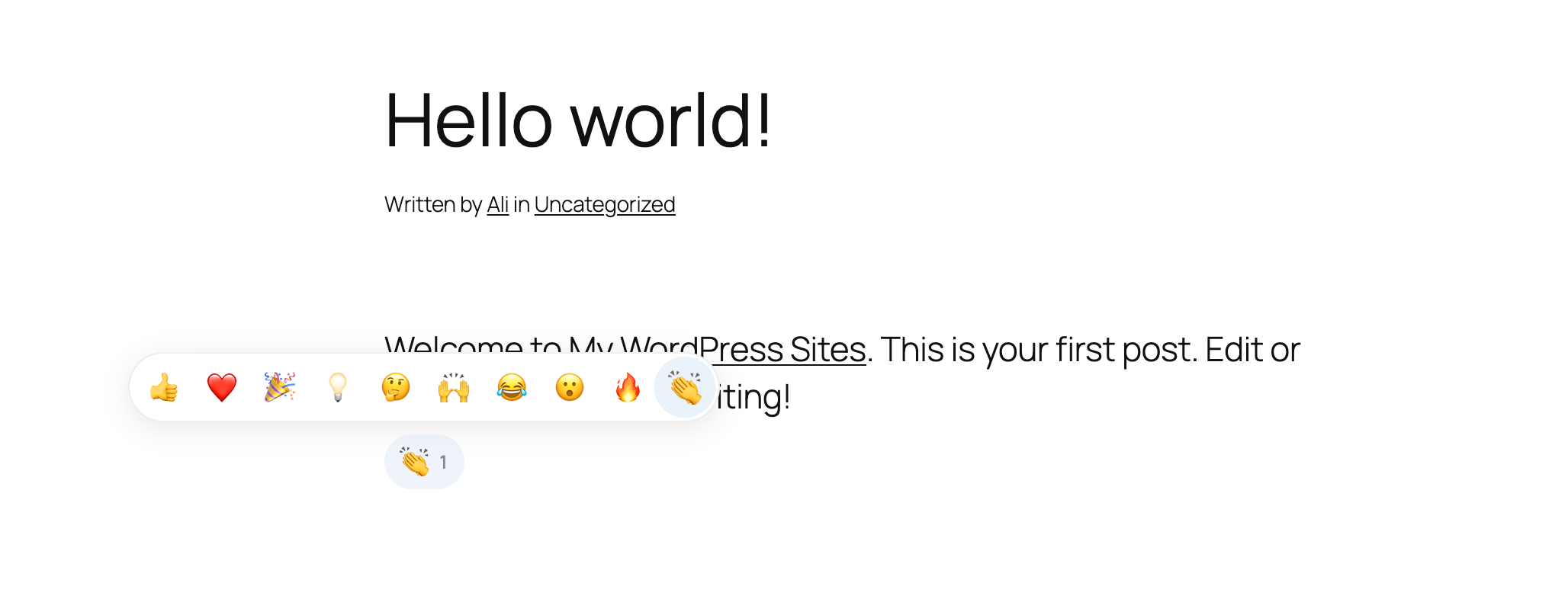
- Hover. A LinkedIn-style flyout. Desktop hover. Mobile long-press.
- Inline. Always-visible row of reactions. Great when you want every option in plain sight.
Star Ratings
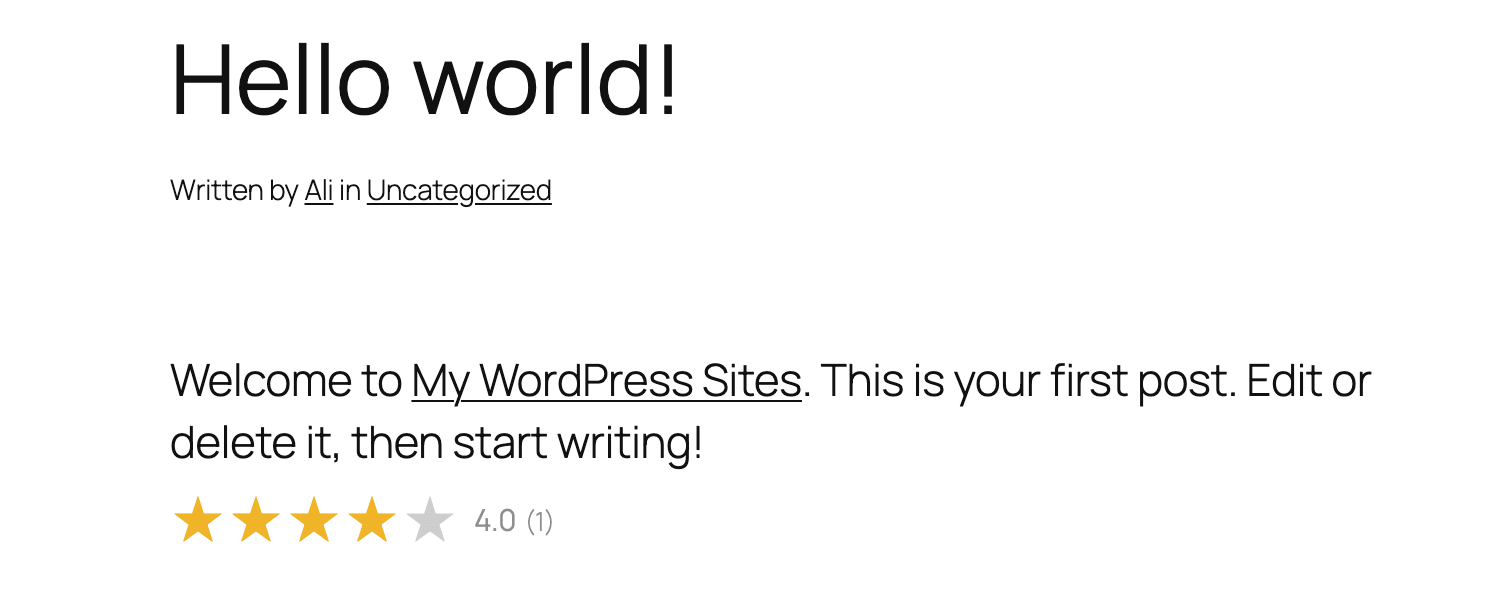
Need a clear score instead of a feeling? Switch the template to Star Rating.
- Simple 1–5 star scale
- Visitor selection fills the stars
- Optional summary: average (one decimal) plus rating count
- Works on posts, comments, BuddyPress activity, and bbPress topics
Stars shine on review-style pages, resource roundups, and product-adjacent content where a number is easier to scan than an emoji row.
What makes WP ULike emoji reactions special
First, reaction type is a real choice, not a skin on the same like counter. Emoji, stars, and classic likes store as different engagement kinds. Your Statistics panel can filter and report on them without mixing signals.
Also, the set is yours. You are not stuck with a fixed Facebook-style row. Pick from the catalog, rename labels, or add custom emoji. Cap the list at what your audience will actually use.
Next, placement stays flexible. Global Content Types settings cover the defaults. Display Automation lets you put emoji on blog singles, stars on another section, and likes on comments, without code.
Finally, design stays in the live Customizer. Size, spacing, borders, accents, hover states, and star colors. Preview before you save. Match the brand, then move on.
How to set up WordPress emoji reactions
Setup lives where you already configure buttons. No separate plugin. No shortcode scavenger hunt unless you want one.
1. Pick the template in Settings
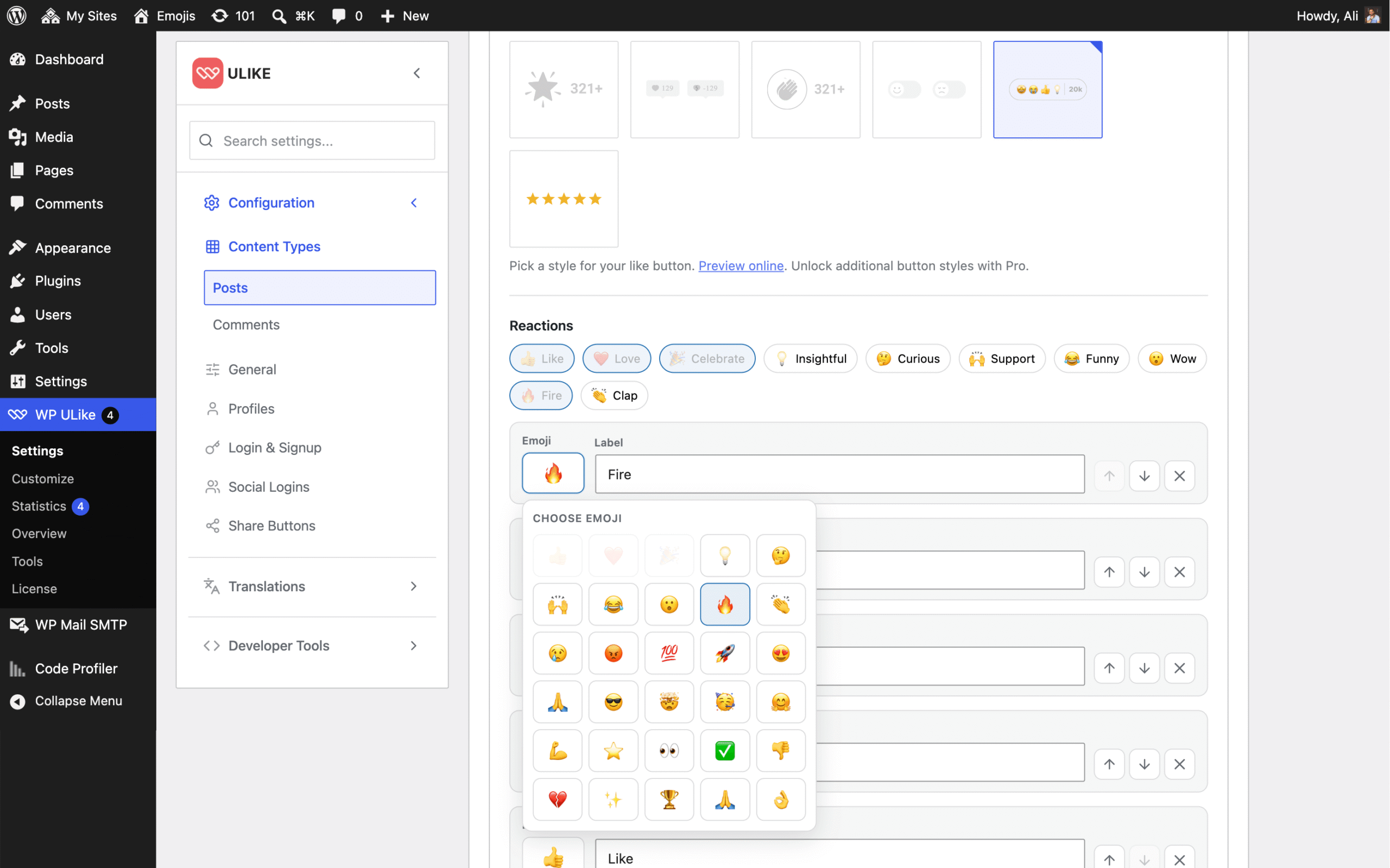
Go to WP ULike → Settings → Configuration → Content Types. Open Posts, Comments, BuddyPress, or bbPress. Under Select a Template, choose Emoji Reactions.
After you select it, engagement fields appear:
- Reactions. Build your set (1–16). Emoji plus optional label.
- Reaction Picker. Hover or Inline.
Your usual options still apply: counters, hide zero counts, Enable Likers Box, likers style (default, popover, or pile), and logging rules for that content type.
2. Or switch to Star Rating
In the same Content Types screen, choose the Star Rating template instead. Visitors get a 1–5 scale. The summary average and count show when enabled. Same path. Different ask.
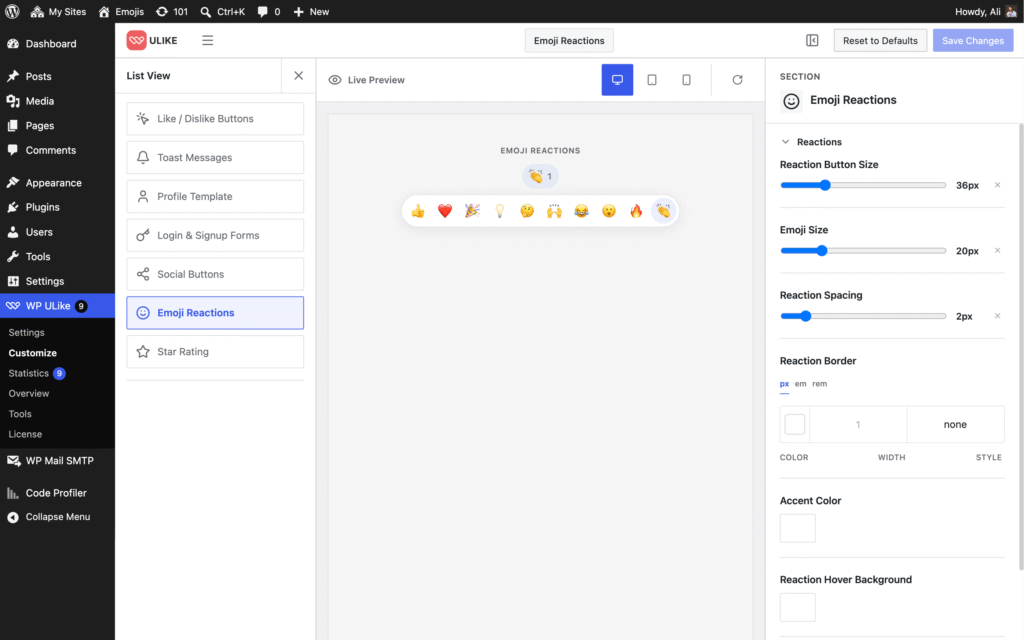
3. Style it in Customize
Open WP ULike → Customize. You will find dedicated sections for Emoji Reactions and Star Rating.
For emoji, tune reaction button size, emoji size, spacing, borders, accent color, hover and active backgrounds, trigger padding, and picker border.
For stars, tune star size, spacing, active and inactive colors, and the rating summary typography.
Changes preview live. Save when it looks right on your theme.
4. Place per section with Display Automation
Want emoji on posts, stars on a custom section, and likes elsewhere? Go to WP ULike → Tools → Display Automation.
Create a rule, pick the template (Emoji Reactions or Star Rating), optionally override the reaction set or picker style, and scope where it shows. Quick Start presets help for posts, products, comments, and shop pages. No theme edits required.
Shortcodes when you need a manual spot
Most sites never need this. When you do, the same shortcode engine works with style attributes:
[ wp_ulike for="post" style="wp-ulike-pro-emoji-reactions"]
[ wp_ulike for="post" style="wp-ulike-pro-star-rating"]
You can also pick these templates in the Gutenberg ULike Button block when Pro is active.
See emoji and star data in Statistics
Reactions are not vanity pixels. They flow into the same Statistics stack:
- Overview and Engagement can reflect emoji and star activity
- Logs and tops can filter by engagement type
- Pro shows who reacted or rated, not only the count
Open WP ULike → Statistics after people start reacting. You will see which posts collect love vs insightful, and which pages earn strong star averages.
Star ratings and Schema.org (optional)
If you use Star Rating on content that fits review-style markup, Pro’s Schema Generator (WP ULike → Tools → Schema Generator) can build AggregateRating from real engagement star averages.
Important: adding star buttons does not guarantee stars in Google. Eligibility depends on the page type and Google’s rules. Schema gives search engines structured data from real ratings. Rich results are never a promise. Use Schema when the content type matches (for example Product or Software Application), and keep the interactive stars for your visitors either way.
Free vs Pro for reaction types
Free includes classic like buttons, templates, and the Statistics dashboard.
Pro adds Emoji Reactions, Star Ratings, the live Customizer sections for both, Display Automation per section, who reacted, and Schema Generator options for AggregateRating and FAQ markup.
Install free from WordPress.org. Add Pro on top when you want emoji, stars, and the deeper picture. Existing votes stay.
Try it in a few minutes
- Activate WP ULike Pro with a valid license (free plugin stays on).
- Go to Settings → Configuration → Content Types → Posts.
- Select Emoji Reactions, pick 5–8 reactions your audience will recognize, and set the picker to Hover or Inline.
- Open Customize, match sizes and colors, then save.
- Visit a post, react once, and check Statistics.
Want stars on another section instead? Change that content type to Star Rating, or add a Display Automation rule. Same engine. Different ask.
Get WP ULike Pro · Try templates live · Documentation
Frequently asked questions
Are WordPress emoji reactions free in WP ULike?
No. Emoji Reactions and Star Ratings are Pro templates. Free includes classic like buttons and the Statistics dashboard. Pro unlocks emoji, stars, Customizer styling for both, and Display Automation.
How many emoji reactions can I add?
Between 1 and 16 per content type. Start from the built-in catalog or add custom emoji and labels.
What is the difference between Hover and Inline?
Hover shows a flyout (desktop hover, mobile long-press). Inline keeps the full reaction row visible all the time.
Can I use emoji on posts and stars on products?
Yes. Set a default template per content type in Settings, or use Display Automation to place like, emoji, or star buttons per section without code.
Do star ratings show in Google search?
Not automatically. Pro can output AggregateRating schema from real star averages via the Schema Generator. Google only shows rich results for eligible content types. Interactive stars still help visitors on your site either way.
Where do I open emoji and star settings?
Go to WP ULike → Settings → Configuration → Content Types, pick a template, then style under WP ULike → Customize. Use Tools → Display Automation for per-section rules.
Do I need both free and Pro?
Yes. Keep the free plugin active and install Pro beside it. Both work together. Your existing likes stay.

Leave a Reply