

Compile assets. Strip dev files. Zip the plugin. Deploy. Tag SVN. Every WordPress plugin build tool should make that routine reliable — not leave you hoping source SCSS didn’t ship in the zip.
If you maintain WordPress plugins, you know the release ritual: compile assets, strip dev files, bump versions in three places, zip it, rsync to staging, tag SVN, hope nothing broke. The work is repetitive. The mistakes are expensive. Therefore, we built a WordPress plugin build tool that handles the whole loop in one place.
That tool is wp-toolkit — an npm-based build and deploy CLI for any WordPress plugin. One config file in your repo. One set of commands for local dev, production builds, server deploys, and WordPress.org releases. We use it every day on WP ULike and our other plugins. Now we’re sharing it with other plugin developers who want a modern workflow without Webpack complexity.
Package: @alimir/wp-toolkit · npm · GitHub · MIT license
What is wp-toolkit, our WordPress plugin build tool?
wp-toolkit is a config-first CLI for the whole plugin release loop. Install it as a dev dependency, add wp-toolkit.config.mjs to your plugin root, and you get a full pipeline:
- Compile assets — SCSS to CSS (Sass + LightningCSS), JavaScript concat + Terser minify
- Package releases — copy a clean production tree to
build/<slug>/and zip it - Deploy — rsync over SSH to named targets (
prod,staging, and more) - Publish to WordPress.org — sparse SVN checkout, sync trunk + assets, version tags, safety checks
- Generate translations —
.potvia WP-CLI, JSON from.pofiles - Watch mode — rebuild SCSS and JS on save during development
Every asset path is explicit in config — wp-toolkit does not guess filenames from your slug. In addition, required sections are validated on startup with clear errors when something is missing or invalid.
npm install @alimir/wp-toolkit --save-dev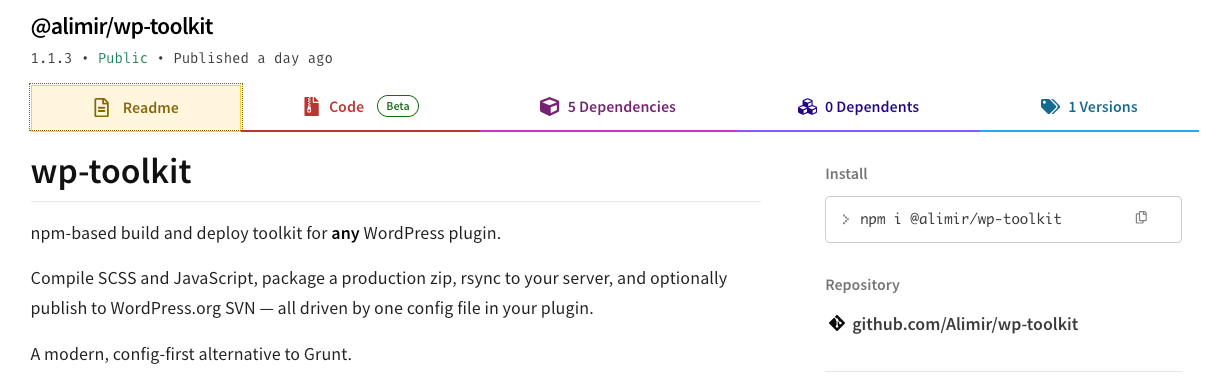
Why we built this plugin build tool
Shipping a WordPress plugin means juggling more than code. Asset builds, packaging, deploy scripts, SVN steps, and translation files often live in different places — and every plugin does it slightly differently.
Because of that, we wanted one repeatable workflow instead of a pile of one-off scripts that only one person on the team fully understands. In addition, we wanted one standard workflow that handles:
- Free plugins on WordPress.org — build, validate, publish to SVN
- Commercial plugins — build, rsync to servers, versioned zip names
- Hybrid teams — same tool, different config per plugin
wp-toolkit is the result: small, focused, and built for how WordPress plugins actually ship. As a result, you get one command set whether you publish to WordPress.org or deploy to a private server.
What this plugin build tool is (and isn’t)
It is: an asset build tool for typical plugin pipelines; a production packaging tool with sensible default excludes; a deploy helper for rsync over SSH; and a WordPress.org release assistant with guardrails.
It is not: a JavaScript bundler like Webpack or Vite (no module graph, no HMR); a WordPress coding framework; or a CI/CD platform — though it plays nicely in GitHub Actions.
If your plugin needs concat + minify for front-end and admin scripts, SCSS compilation, and a reliable zip/deploy/release flow, wp-toolkit fits. However, if you’re building a React SPA inside a plugin, you’ll still want a bundler for that part — wp-toolkit handles the WordPress plugin lifecycle around it.
How the config is organized
All plugin-specific settings live in wp-toolkit.config.mjs. The file follows one consistent layout — identity, assets, build output, then delivery options:
- Identity —
slug,mainFile,textDomain - assets —
js.bundles,css.sassEntries(use[]/{}when unused) - build —
excludes, packaging options, preprocess flags, hooks - release — WordPress.org SVN (optional)
- deploy — rsync targets for commercial or private plugins (optional)
- i18n — POT generation (optional)
- variants — alternate builds for regional or white-label editions (optional)
Nothing is inferred from your slug. You declare every JS bundle output, every SCSS entry, and every exclude path yourself — so the config always matches your plugin folder structure.
Plugin build tool commands at a glance
- wp-toolkit build — full production build + zip
- wp-toolkit build:js — JavaScript only
- wp-toolkit build:css — SCSS/CSS only
- wp-toolkit dev — watch and rebuild assets
- wp-toolkit deploy [name] — rsync build/ to server (default: prod)
- wp-toolkit product [name] — build, then deploy
- wp-toolkit release — build, then publish to WordPress.org SVN
- wp-toolkit i18n — generate .pot (requires WP-CLI)
- wp-toolkit i18n:json — generate JSON from .po files
Release safety flags:
WP_RELEASE_DRY_RUN=1 npm run release   # preview SVN changes, no commit
WP_RELEASE_YES=1 npm run release       # skip interactive confirmation
Getting started with the WordPress plugin build tool
1. Install the build tool and copy config
npm install @alimir/wp-toolkit --save-dev
cp node_modules/@alimir/wp-toolkit/wp-toolkit.config.example.mjs wp-toolkit.config.mjs
cp node_modules/@alimir/wp-toolkit/.env.example .env
First, commit wp-toolkit.config.mjs. Also, keep .env gitignored — deploy credentials and SVN passwords live there, never in config.
2. Configure identity, assets, and build paths
Most plugins start with identity fields, one JS bundle, one SCSS entry, and build excludes. For WordPress.org plugins, add a release block. For commercial plugins, disable SVN and add deploy instead:
export default {
  slug: 'my-plugin',
  mainFile: 'my-plugin.php',
  textDomain: 'my-plugin',

  assets: {
    js: {
      bundles: [
        {
          sources: ['assets/js/src/app.js'],
          output: 'assets/js/my-plugin.js',
          minOutput: 'assets/js/my-plugin.min.js',
        },
      ],
    },
    css: {
      sassEntries: {
        'assets/css/my-plugin.css': 'assets/sass/my-plugin.scss',
      },
    },
  },

  build: {
    excludes: ['assets/sass', 'assets/js/src'],
  },

  release: {
    enabled: true,
    svnUrl: 'https://plugins.svn.wordpress.org/my-plugin',
  },
};
For commercial plugins:
release: { enabled: false },
deploy: { prod: { envPrefix: 'DEPLOY_PROD' } },
3. Add npm scripts for the build tool
{
  "scripts": {
    "build": "wp-toolkit build",
    "dev": "wp-toolkit dev",
    "product": "wp-toolkit product",
    "release": "wp-toolkit release",
    "i18n": "wp-toolkit i18n"
  },
  "devDependencies": {
    "@alimir/wp-toolkit": "^2.0.1"
  }
}
4. Build and ship
npm run dev          # local development with file watching
npm run build        # build/my-plugin/ + build/my-plugin.zip
npm run product      # build + rsync to prod
npm run release      # build + WordPress.org SVN publish
That’s the core loop. Everything else — extra bundles, hooks, variants, versioned zip names — is optional when your plugin grows.
Plugin build tool features developers use most
Explicit JS bundles and SCSS entries
Each JavaScript bundle declares its own sources, output, and minOutput. Front-end and admin scripts? Add another entry under assets.js.bundles. CSS-only plugin? Set bundles: [] and keep your sassEntries. You can also list standalone minify targets in assets.js.minify, ship unminified CSS locally via assets.css.minifySeparate, and extend what dev watches through assets.watch.
Build packaging that excludes the right files
wp-toolkit copies your plugin to build/<slug>/, strips dev-only files, and zips the result. Use build.excludes for paths that never ship, and build.devOnlyFiles for files you need locally but not in the zip. By default, validation.inheritExcludes also blocks those paths from release zips — so an exclude in config doubles as a safety check.
Trailing whitespace is trimmed from text files in the release bundle by default (build.trimTrailingWhitespace). Optional image compression (pngquant, jpegoptim) runs during build if those tools are installed.
Pre and post build hooks
Need to run codegen, compile blocks, or ping Slack before or after a build? Use build.hooks:
build: {
  hooks: {
    preBuild: ['npm run codegen'],
    postBuild: ['npm run notify:slack'],
  },
},
Hooks accept shell strings or objects with command, args, and cwd — handy when a step lives outside the plugin root.
Release validation before SVN
Before a WordPress.org release, wp-toolkit checks for required files, forbidden dev artifacts, version alignment across package.json, the main plugin file, and readme.txt Stable tag, and accidental re-release of the same SVN tag. It can also warn when PHP enqueues unminified assets (validation.checkMinifiedAssets). Therefore, you catch mistakes before they reach the directory.
Release uses a sparse SVN checkout — fast, quiet, and scoped to what you’re publishing. You type yes to confirm before anything commits.
Build variants
Need a second zip with different strings or a regional domain swap? Variants handle find-replace, custom zip suffixes, and optional deploy targets:
variants: {
  regional: {
    zipSuffix: '-regional',
    replacements: [{ from: 'example.com', to: 'example.ir' }],
    files: ['**/*.php'],
    deploy: 'staging',
  },
},
Conditional compilation (LITE / PRO / DEV)
Use preprocess flags in PHP, CSS, or readme files. Configure them under build.preprocess:
/* @if PRO */
// Pro-only code stripped from free builds
/* @endif */
i18n and versioned zip names
For translations, npm run i18n generates your .pot via WP-CLI, and npm run i18n:json builds JSON from .po files — configured in the i18n section. For commercial plugins, build.zipName and build.versionFile let you ship versioned zip filenames and include a version txt in the bundle.
How we use this WordPress plugin build tool on WP ULike
WP ULike is a real-world stress test: multiple JS bundles, several SCSS entry points, Gutenberg block sub-builds, preprocess flags for LITE vs PRO code paths, pre-build hooks, WordPress.org SVN releases, and a private production deploy. Our wp-toolkit.config.mjs defines every asset path explicitly — bundles, sass entries, excludes, and delivery targets in one file.
One toolchain. Same commands every release. No digging through scattered scripts before you can ship.
Requirements for the build tool
- Node.js 18+
zipandrsyncon PATHsvn— WordPress.org release onlywp(WP-CLI) —i18ncommands only- Optional:
pngquant,jpegoptimfor image compression
Try it on your next release
If your release process still feels held together with shell scripts and crossed fingers, this WordPress plugin build tool is worth an afternoon. Install it from npm (npm install @alimir/wp-toolkit --save-dev), copy and edit wp-toolkit.config.mjs, run npm run dev while you work and npm run build before you ship. Then use npm run release for WordPress.org or npm run product for rsync deploy.
npm package · GitHub repository · README & config reference · Report issues
Built by the team behind WP ULike. MIT licensed. Pull requests welcome.
Frequently asked questions
Is wp-toolkit free?
Yes. wp-toolkit is MIT licensed and free to use on personal, commercial, and client projects.
Do I need wp-toolkit if I already use Webpack or @wordpress/scripts?
Not necessarily. Bundlers solve module graphs and modern JS tooling. wp-toolkit solves the WordPress plugin release lifecycle: compile classic assets, package a clean zip, deploy, publish to SVN, validate versions. Many teams use both.
Can I use wp-toolkit without WordPress.org SVN?
Yes. Set release: { enabled: false } and configure deploy targets instead. npm run product builds and rsyncs to your server.
What makes wp-toolkit different from a generic build setup?
It is built around how WordPress plugins actually ship: explicit asset bundles, release validation, deploy over rsync, and WordPress.org SVN publishing — all from one config file and one npm package.
Can I use it in CI/CD?
Yes. Run wp-toolkit build in GitHub Actions or similar. For releases, use WP_RELEASE_DRY_RUN=1 in CI to preview, and run the actual SVN publish from a trusted environment with credentials in secrets.


Leave a Reply