

If you’ve used WP ULike for a while, you already know we care about stats you can actually read. The statistics panel just took its biggest step forward yet.
Update WP ULike, open Statistics, and you’ll feel the difference right away. The new WP ULike statistics dashboard keeps what worked: your vote data, charts, logs, and (with Pro) the intelligence reports you rely on. What’s new is the daily layer on top. Overview as a home screen, growth tips that react to your numbers, when-to-publish insights, and a faster path between reports. Same foundation. More useful every time you log in.
Why we pushed the WP ULike statistics dashboard further
The stats panel you already had gave you clearer charts, faster loading, and logs that matched the rest of the admin. That foundation was solid. But likes only help if you know what to do next.
We kept hearing the same things: What should I publish next? When are people on my site? Is this week better than last week? Who actually cared? Charts and tables held the answers. You still had to connect the dots yourself.
So we built WP ULike → Statistics as one home for daily checks and deeper reports. Not a reset. An upgrade path. Your existing votes, logs, and Pro reports stay. You get new use cases on top.
What’s new (and what you already had)
Fair question if you’ve been with us a while. Here’s the honest split:
Already there: engagement charts, top-content lists, vote logs, date-based views, and the cleaner analytics layout you got used to. Pro users still get who liked each post, engagement rate, geography, content intelligence, and WooCommerce store reports. Nothing you paid for goes away.
New in this release: a dedicated Statistics home, Overview with week-over-week totals, Insights growth tips, when-to-publish timing on Overview, smoother navigation between sections, focus mode, dashboard settings, and a free tier that answers “what happened today?” without opening three screens.
What’s free when you open Statistics
After you update, you’re not looking at a trial screen. The free plugin still gives you real charts and logs. Now it also gives you a morning routine: open Overview, read one tip, move on with your day.
Overview: your daily home screen
Overview is where you’ll probably start every time. Total engagement, today’s activity, yesterday’s count, and how this week compares to last week sit up front. You get the pulse of your site without jumping between four different reports.
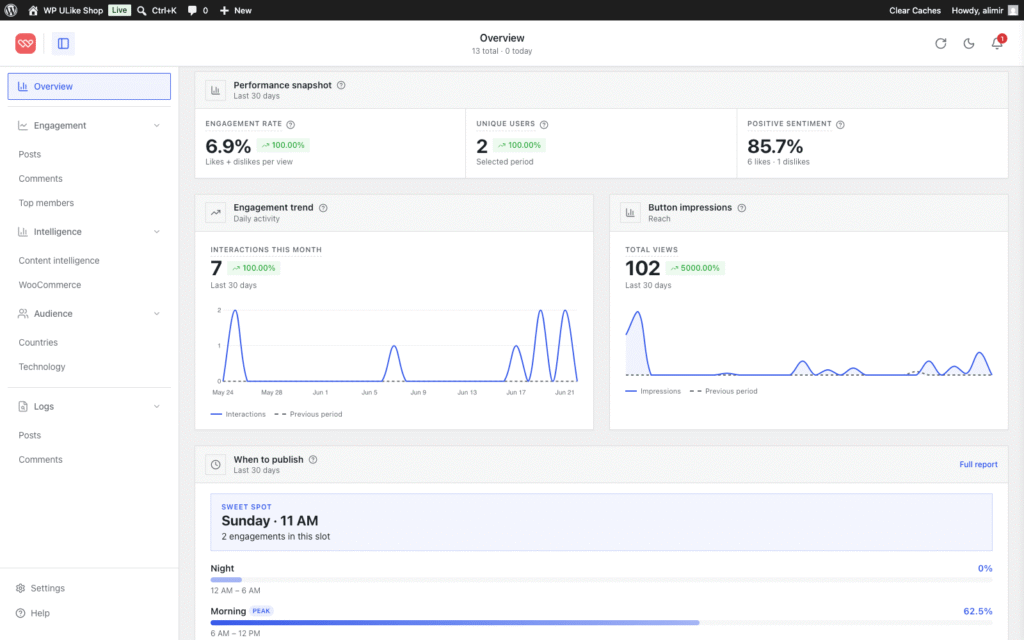
At the top, Insights is genuinely new. Short growth tips tied to your own numbers. You might see a momentum shift, a milestone, or a quiet day compared to yesterday. Charts showed you the shape before. Insights tell you what it might mean.
Engagement: see what wins
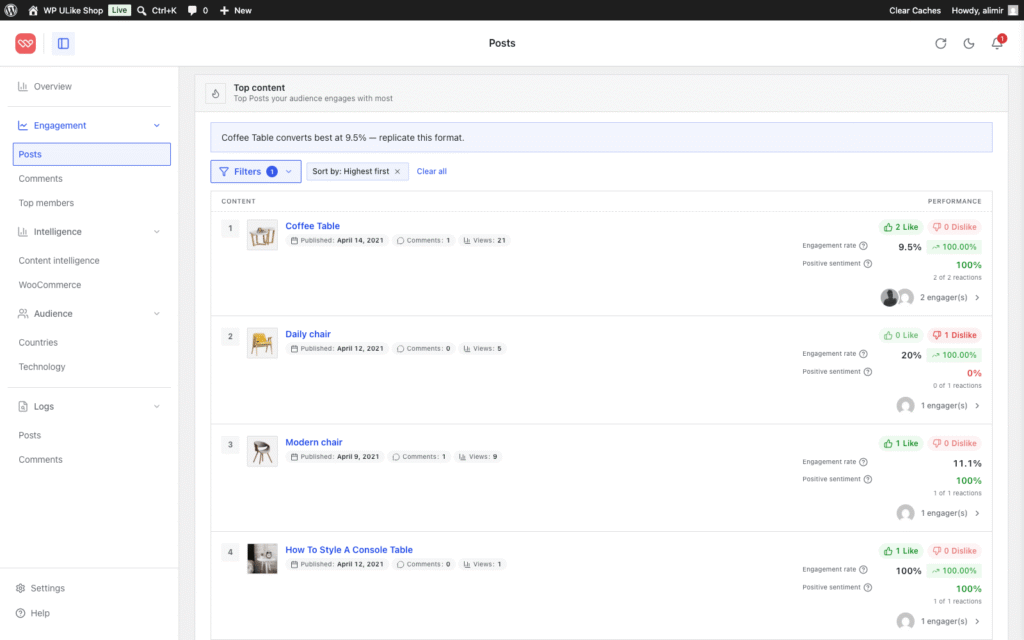
When you want charts and ranked lists, head to Engagement. If you’ve used WP ULike stats before, this will feel familiar: posts, comments, BuddyPress activity, bbPress topics, and more. Types with no votes stay hidden, so you’re not clicking dead tabs.
When to publish
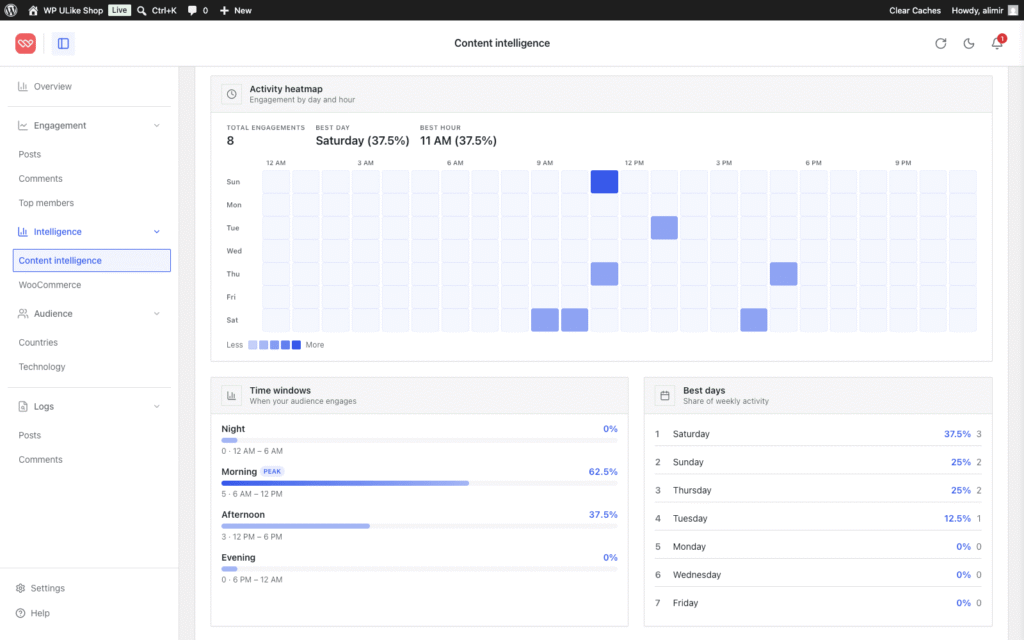
Overview now surfaces when people vote most through the day: morning, afternoon, evening, or night. That’s new on the home screen and included free. Pro still adds heatmaps when you want finer detail on timing.
Logs, dark mode, and focus mode
Need the row-by-row story? Logs is the screen you already know, now sitting inside the same Statistics panel. Dark mode and focus mode are new comforts if you review numbers often (focus mode hides the usual WordPress chrome). You can also tune announcements and sidebar options from dashboard settings.
Everything loads inside WordPress only, follows your admin color scheme, and uses smart caching as your site grows. Your visitors never download this code.
What Pro adds to the statistics dashboard
If you’ve used WP ULike Pro before, most of this will sound familiar. Who liked each post, engagement rate vs page views, top countries, content intelligence, deeper log tools, and WooCommerce store reports were already part of the Pro toolkit. What’s changed is the front door. They all live inside the same Statistics panel free users see, so you’re not jumping between different admin experiences.
Free tells you what’s getting votes. Pro still tells you who cared, where they’re from, whether it converts, and what to write next. Both plugins stay installed together. Pro extends the panel. It doesn’t replace the free plugin.
Open a post and you’ll see who liked it. Your top fans sit in one list. Engagement rate compares votes to page views, so you can spot posts that get traffic but no reaction. Heatmaps show when reactions spike. A world map shows top countries, and the same report covers phones vs desktops.
Content intelligence ranks what your audience keeps coming back to. And when a simple log browse isn’t enough anymore, Pro adds search, filters, and bulk cleanup. For the full story on engagement rate, read our engagement rate analytics guide.
For shops: likes vs sales in one place
If you run a WooCommerce store, this part matters.
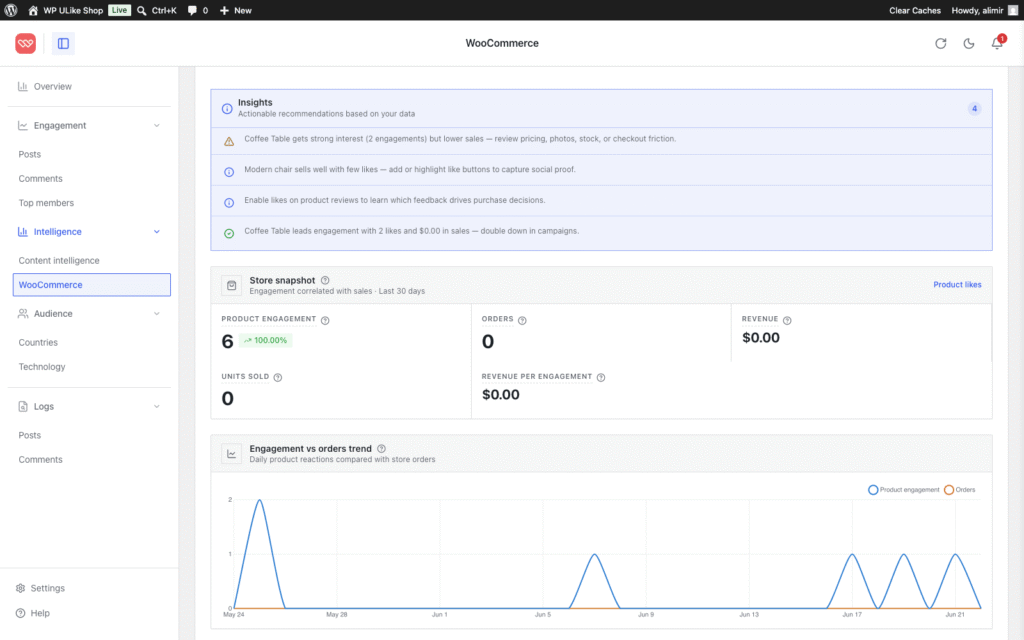
WooCommerce tells you what sold. Google Analytics tells you what got views. Most like plugins tell you which products got a heart icon. None of that alone answers the harder question: which products do people love but not buy?
WP ULike Pro still compares product likes to orders side by side. If you run a shop, that use case hasn’t moved. It just sits next to your blog Overview now, in the same statistics dashboard, instead of feeling like a separate tool.
You spot items that get reactions but not sales, then fix the listing, price, or photos before you lose another buyer. Shop spotlight and product engagement reports help you decide what to feature, bundle, or promote.
Store reports are Pro only. Free still puts like buttons on products and shows vote data in Overview and engagement reports. Store intelligence sits on top when you’re ready for it.
Try it in two minutes
Your front-end buttons don’t change. Your vote history doesn’t reset. Update from WordPress.org, open Statistics, and read one growth tip on Overview. If you’re on Pro already, explore the same menu and notice how much faster the daily check feels. Still on free and want who liked each post or shop reports? Pro is the same next step as before.
Stuck on something or wish the dashboard answered a question it doesn’t yet? Tell us. We read every note.
Download or update WP ULike · Get WP ULike Pro · Documentation
Frequently asked questions
How is this different from the previous statistics panel?
The old panel already had clearer charts and logs. This update adds a Statistics home (Overview), growth tips, when-to-publish insights on Overview, focus mode, and smoother navigation. Your data and Pro reports carry over. Same plugin, more useful stats panel.
Do I need Pro to use the WP ULike statistics dashboard?
No. Free includes Overview, growth tips, engagement reports, when-to-publish insights, vote logs, dark mode, and focus mode. Pro adds who liked each post, engagement rate, geography, content intelligence, deeper logs, and WooCommerce store reports.
Do I need both the free and Pro plugins?
Yes. Pro works alongside the free plugin from WordPress.org. Install and activate both. Your votes and settings carry over when you add Pro.
Will the statistics dashboard slow down my site?
No. The like button on your site stays lightweight. Statistics run inside WordPress only and use smart caching as you grow. If you use a full-page cache plugin, purge cache once after updating.
Does free include WooCommerce store reports?
No. Free supports like buttons on products and shows vote data in Overview and engagement reports. Likes vs sales and full store intelligence are Pro. See the full comparison.
Will my existing votes disappear when I update?
No. Your vote counts, logs, and settings stay put. You’re getting a new dashboard on top of the data you already have.
Where do I open the WP ULike statistics dashboard?
Go to WP ULike → Statistics inside WordPress. Overview is the home screen. Use the sidebar for Engagement and Logs.
Leave a Reply