

If you’ve ever opened WP ULike settings and thought “where do I even start?” — we heard you. So we rebuilt the whole panel.
This is not a small polish pass. Instead, the Settings and Customizer screens in WP ULike have been fully redesigned — a new look, a clearer layout, and a smoother daily routine whether you’re on a laptop or checking something quickly on a tablet.
You still get the same powerful tools: voting rules, button templates, live previews, and everything else you rely on. However, what feels different is how easy it is to use them. As a result, you’ll spend less time hunting for options, less time scrolling past what you don’t need, and more time feeling sure you’re in the right place.
Why we redesigned the panel
Over the years, WP ULike has grown a lot. You now have more content types, more templates, and more Pro tools to work with. That’s great for your site — but the admin side needed to catch up.
We kept hearing the same story: “I know the feature is in here somewhere.” Or: “I changed a setting but I can’t tell if it worked until I check the front end.” Because Settings and Customizer are where you spend real time, they deserved a full rebuild — not another layer on top of the old layout. That’s also why we added search inside Settings, so you can jump straight to the option you need.
So we stepped back and asked a simple question: what would this panel look like if we designed it today, for everyday site owners? In short, the answer is what you’ll see when you open WP ULike after updating.
What you’ll notice right away
First, you’ll see a cleaner, more modern screen. The menu colors are updated. The layout has more room to breathe. Plus, Settings and Customizer now feel like two parts of the same product — not two different worlds.
Also, the panel is fully compatible with the WordPress Administration Color Scheme. If you use Light, Modern, Blue, or any other admin color in your user profile, WP ULike Settings and Customizer follow along. That means the plugin feels like part of WordPress — not a separate app dropped into your dashboard.
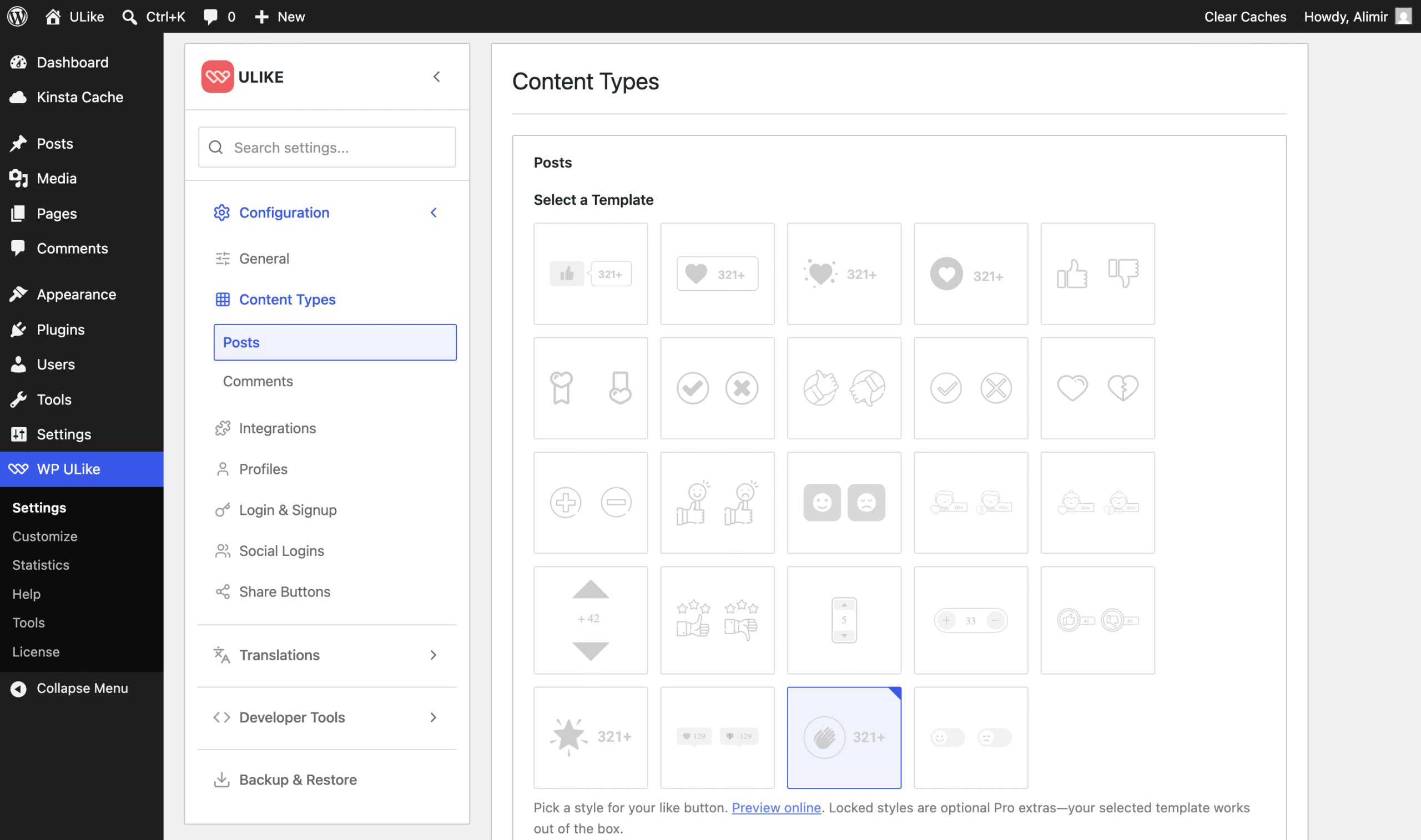
Next, navigation is easier to scan because related options sit together. Important tasks — like turning voting on, picking a button style, or adjusting how things look — stand out first. That way, you don’t have to scroll through a wall of fields.
Finally, on smaller screens, the panel adapts instead of squeezing everything into a tiny column. Therefore, if you manage your site from a phone or tablet, the experience stays useful — not something that only works on a big monitor.
Settings: organized, not overwhelming
The Settings panel is where you set up how WP ULike behaves — which post types get like buttons, logging rules, and the rest. With the redesign, these options are grouped more clearly so you’re not scrolling forever to find one toggle.
Search settings and jump to the right option
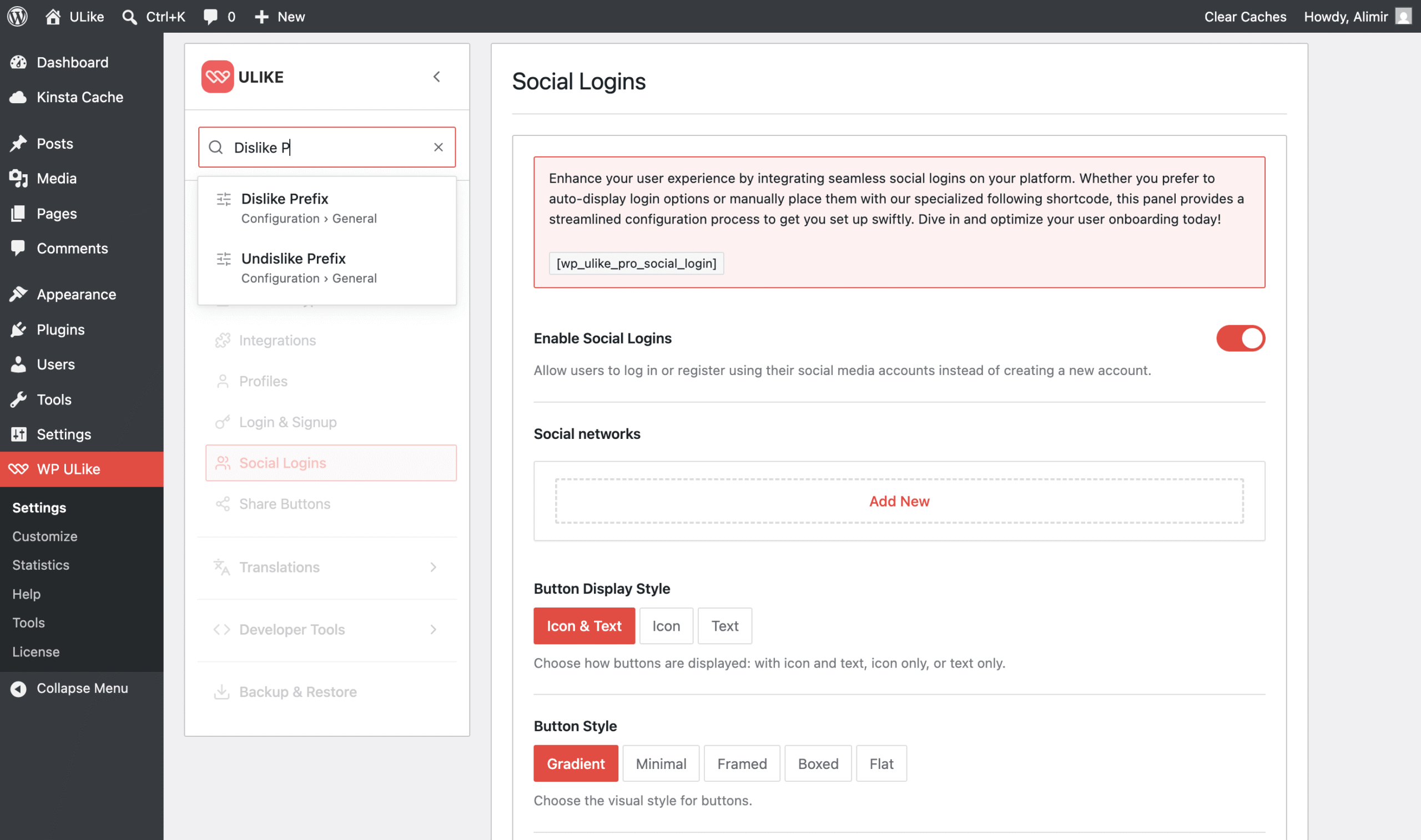
Even with a cleaner layout, WP ULike still has a lot of settings — especially on larger sites. So we built a search bar right inside the Settings panel.
Type what you’re looking for — like “reCAPTCHA,” “BuddyPress,” or “anonymize IP” — and the panel finds matching options for you. Then, with one click, it scrolls you straight to the right field. No more opening every section by hand just to find one toggle.
For example, if a support article mentions a setting by name, you can search it, land on it, and move on. As a result, return visits feel much faster — even if you haven’t touched WP ULike in months.
Here’s what that means in practice:
- Settings search — find any option by name and jump to it instantly
- Faster setup — so new users can turn on voting and pick basics without feeling lost
- Easier return visits — because when you come back six months later, you still know where things live
- Less clutter — since you see what’s relevant to what you’re setting up, not everything at once
Whether you run a simple blog or a site with WooCommerce, BuddyPress, and Pro tools, Settings should feel like a control panel — not a maze.
Customizer: see changes as you make them
The Customizer is where you make WP ULike look right on your site — button styles, colors, toast messages, and more. With the redesign, live preview is front and center.
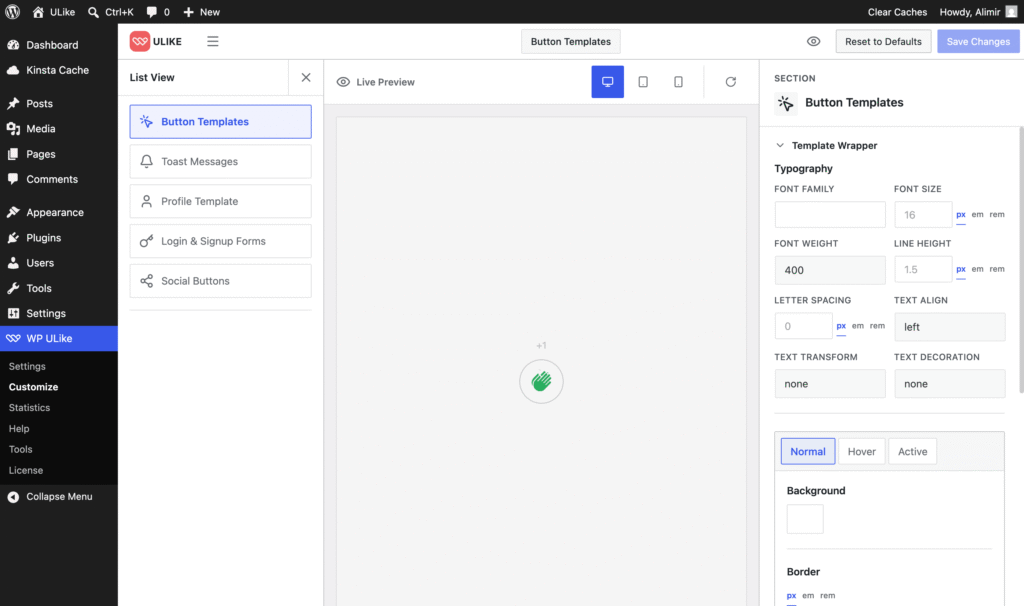
For example, change a color, switch a template, or tweak spacing — and you’ll see it update right away. Previously, that meant save, switch tabs, refresh, and hope. Now, however, you get instant feedback, the way a visual editor should work.
If you’ve used the Customizer before, you’ll feel the difference in the first minute. And if you’re new to WP ULike, you’ll pick it up faster because what you change is what you see.
Built for everyone — including easier access
A redesign isn’t just about looking modern. It’s also about making the panel work for more people, more comfortably.
To start, we improved readability — better contrast, spacing, and text size so your eyes don’t tire during a long setup session. In addition, navigation is easier with a keyboard or screen reader, so you’re not stuck with a mouse-only layout. On top of that, the panel still works well on phones and tablets — not just a wide desktop screen.
Consistency matters, too. When Settings and Customizer share the same look and feel — and match your chosen Administration Color Scheme — you learn the panel once and use it everywhere. As a result, you spend less time wondering “which screen am I on?” and more time getting your site set up.
Same plugin. Better home for your settings.
Nothing about your votes, templates, or front-end buttons goes away in this update. Your data stays put, and your site keeps working. What changes is the admin experience — the part only you and your team see — and we think you’ll feel the difference right away.
Update WP ULike, then open Settings and Customizer and take a look. Try the Settings search for an option you use often — or one you could never find before. Pick a button style you’ve been putting off, and see how much smoother it feels.
We’re proud of this redesign — and we’re not done listening. So if something still feels confusing, or if a screen could be even clearer, tell us. After all, your feedback shapes what we build next.
Download or update WP ULike · Explore WP ULike Pro · Documentation
Leave a Reply