

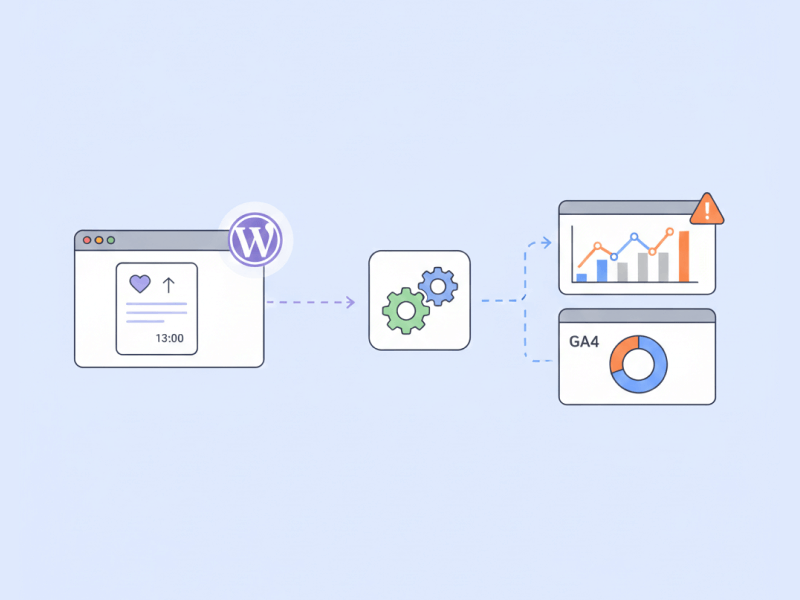
Your WP ULike stats live in WordPress. But your funnels, audiences, and GA4 reports need those clicks too.
If you use WP ULike, you already get a solid Statistics Panel inside WordPress. Trends, filters, comparisons — it’s all there.
But sometimes you also need like and unlike events inside Google Analytics 4. That’s where Google Tag Manager (GTM) comes in. With a small script and a few tags, you can send every WP ULike click to GA4 as a clean event.
Below is a step-by-step guide you can copy and set up in about 15 minutes. No plugin changes required.
What you will track
WP ULike fires a JavaScript event called WordPressUlikeUpdated every time a user likes or unlikes content. That event is your hook for GTM tracking.
Our script reads the button state and pushes these values to the data layer:
- action — like, unlike, dislike, or undislike
- content ID — the post, comment, or item ID
- content type — post, comment, activity, topic, etc.
- counter — the updated count shown on the button
- timestamp — when the action happened
From there, GTM sends a GA4 event called wp_ulike_engagement with those parameters attached.
Before you start
Make sure you already have:
- WP ULike or WP ULike Pro installed and working on the front end
- Google Tag Manager installed on your site
- A GA4 property connected to GTM
Also, publish your GTM container after each step below. Otherwise Preview mode works but live tracking won’t.
Step 1: Add the data layer script in GTM
In Google Tag Manager, create a new tag:
- Tag type: Custom HTML
- Trigger: All Pages
- Name it something like WP ULike – Data Layer Listener
Then paste this script into the HTML field:
(function() {
  document.addEventListener('WordpressUlikeUpdated', function(event) {
    const ulikeElement = event.detail;

    if (!ulikeElement) return;

    const button = ulikeElement.querySelector('.wp_ulike_btn');
    const counter = ulikeElement.querySelector('.count-box');
    const generalElement = ulikeElement.querySelector('.wp_ulike_general_class');

    if (!generalElement || !button) return;

    const factor = button.getAttribute('data-ulike-factor') || 'up';
    const isDownvote = factor === 'down';
    let actionType;

    if (generalElement.classList.contains('wp_ulike_is_liked')) {
      actionType = isDownvote ? 'dislike' : 'like';
    } else if (generalElement.classList.contains('wp_ulike_is_unliked')) {
      actionType = isDownvote ? 'undislike' : 'unlike';
    } else {
      actionType = 'unknown';
    }

    const contentId = button.getAttribute('data-ulike-id');
    const contentType = button.getAttribute('data-ulike-type');
    const counterValue = counter ? counter.textContent.trim() : null;

    window.dataLayer = window.dataLayer || [];
    window.dataLayer.push({
      event: 'wp_ulike_engagement',
      wp_ulike_action: actionType,
      wp_ulike_content_id: contentId,
      wp_ulike_content_type: contentType,
      wp_ulike_counter: counterValue,
      wp_ulike_timestamp: new Date().toISOString()
    });
  });
})();
This script listens for WP ULike clicks and pushes a wp_ulike_engagement event into the data layer. That’s the event GTM will pick up next.
Step 2: Create data layer variables
Next, go to Variables → New in GTM and create four Data Layer Variable entries:
- wp_ulike_action → Data Layer Variable Name:
wp_ulike_action - wp_ulike_content_id → Data Layer Variable Name:
wp_ulike_content_id - wp_ulike_content_type → Data Layer Variable Name:
wp_ulike_content_type - wp_ulike_counter → Data Layer Variable Name:
wp_ulike_counter
These variables let your GA4 tag read the values our script sends.
Step 3: Create the GTM trigger
Now create the trigger that fires when our data layer event runs:
- Go to Triggers → New
- Trigger type: Custom Event
- Event name:
wp_ulike_engagement - Save as WP ULike – Engagement Event
Important: use wp_ulike_engagement here, not WordPressUlikeUpdated. The DOM event is handled by our script. GTM listens for the data layer push.
Step 4: Send the event to GA4
Create a new Google Analytics: GA4 Event tag:
- Event name:
wp_ulike_engagement - Event parameters:
action→ {{wp_ulike_action}}content_id→ {{wp_ulike_content_id}}content_type→ {{wp_ulike_content_type}}counter→ {{wp_ulike_counter}}
- Trigger: WP ULike – Engagement Event
- Save and publish your container
Step 5: Test everything
Open GTM Preview mode and load a page with WP ULike buttons. Then:
- Click a like or unlike button on the page
- In Tag Assistant, confirm the Custom HTML tag fired on page load
- After clicking, look for the
wp_ulike_engagementevent in the data layer - Confirm your GA4 Event tag fired on that trigger
- Check GA4 Realtime for the
wp_ulike_engagementevent
If all five checks pass, your tracking is live.
WordPress stats vs GA4 tracking
You don’t have to pick one or the other. WP ULike’s built-in stats are great for quick content insights inside WordPress. GA4 tracking is better when you want funnels, custom audiences, behavior flows, or reports alongside your other site events.
Together, they give you a full picture: native engagement data in WP ULike, plus the same actions inside your analytics stack.
Need help with the stats panel itself? Read our analytics dashboard guide. Stuck on setup? Reach out via Support.
Frequently asked questions
What event does WP ULike fire for Google Tag Manager?
WP ULike fires a DOM event called WordPressUlikeUpdated when a vote finishes. For GTM, our script converts that into a data layer event named wp_ulike_engagement, which is what your GA4 tag should listen for.
Do I need WP ULike Pro for GTM tracking?
No. The WordPressUlikeUpdated event fires on both the free and Pro plugins. GTM tracking works the same way on either.
Why isn’t my GTM trigger firing?
The most common mistake is using WordPressUlikeUpdated as the GTM Custom Event name. GTM can’t hear DOM events directly. Use wp_ulike_engagement as the trigger instead, after the Custom HTML script pushes it to the data layer.
Can I track dislikes too?
Yes. The script sends like, unlike, dislike, or undislike in the action parameter, depending on your button type and the user’s click.
Does this work with GA4 only?
This guide targets GA4 through GTM. If you still use Universal Analytics, you can adapt the same data layer variables to a UA event tag, but GA4 is the recommended setup today.


Leave a Reply